Skip to content

App suite

Record it in the car. Understand it afterwards.

vdyn Logger lives in the car: it records the phone and the sensors you connect, times each run and gives you quick comparisons at the car. vdyn is for the deeper review: comparing runs and laps, looking at the car model, trying a different line and asking questions about the result. Use either on its own, or both together.

In development. Internal builds are being used and tested, but neither app has a public release yet.

Logger’s Drive screen during a run: the clock at 38.6, 0.31 seconds ahead of the best run, with the hold-to-end-heat control at the bottom.

Record · iPhone & iPad development builds

vdyn Logger

Put the phone in the mount and drive. Logger handles the clock, captures the sensors and gives you the run to review when you stop.

  • Automatic run and lap timing
  • Fused 50 Hz position estimate
  • Run comparison at the car
Explore vdyn Logger
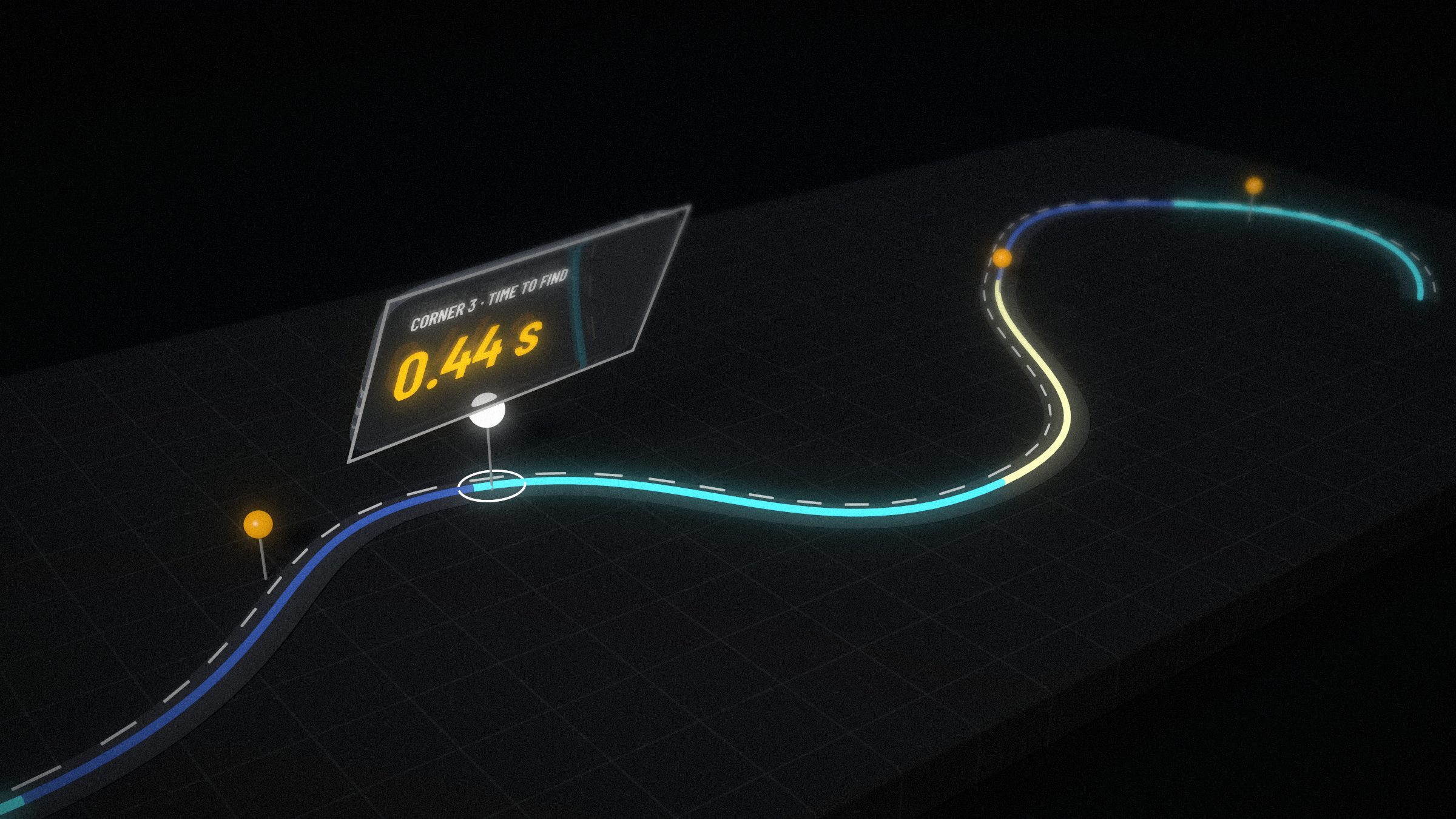
vdyn on iPhone, illustrative: the latest run, Sample event, Run 3, with a recorded time of 64.595 and 2.69 s to find. Where to look first: Corner 3, 0.44 s.

Analyse · Mac build now · iPad & iPhone in development

vdyn

Compare runs, see where speed and line made the difference, and test a different approach before you drive again.

  • Lap Review with 3D preview
  • Adjust a line and model the result
  • Ask questions about your data
Explore vdyn

App screens show illustrative demo data.

Side by side

Which app does what.

Feature vdyn Logger vdyn
Where you use it In the car, on the course walk, and at the car between runs Between runs, between sessions and back at the desk
What it does Records the phone’s sensors and the devices you connect, times runs and laps at the lines, and compares up to three runs at the car Compares runs and laps corner by corner, models what was possible, tries a different line and answers questions about the data
Works with Phone GPS and motion, RaceBox, Dragy, RaceCapture/Track MK4, AiM Solo 2, OBDLink CX and GoPro, in the development build; validation varies by device Recordings from vdyn Logger, SoloStorm databases, CSV logs and GoPro clips
The coach — Rule-based summaries, local models in development builds, or Claude with your own API key
Runs on iPhone and iPad with iOS/iPadOS 26 Apple silicon Mac with macOS 26 today; iPad and iPhone in development
Status Working development builds, used in internal event testing Signed Mac development build. Not publicly released

Device and platform details describe current development builds. Product names belong to their respective owners.

Together

One recording, from the car to the desk.

Each app works on its own. Used together, the run you record at the event is the same one you review later, with nothing to copy across by hand.

  1. 1 vdyn Logger

    Record

    Logger records the run with the phone and the gear you’ve connected, and times it at the lines.

  2. 2 iCloud Drive

    Library

    Completed recordings land in a shared iCloud Drive library. vdyn waits until a recording’s files are complete and checked before importing it.

  3. 3 vdyn

    Review

    vdyn compares the run with your others, models what was possible and helps you decide what to try next.

vdyn can also import supported files from other loggers, so you don’t have to start your history over.

A day at the event

From course walk to the next adjustment.

Five moments in a driving day. Different screens, same data, and as little fiddling as possible when you’re supposed to be driving.

vdyn Logger · iPhone

Walk it once. Keep the notes.

Record the course on foot, mark cones and gates, and speak notes as you go. Logger uses the walk to help place timing markers; you approve them before they go live.

  • Cone markers from the Lock Screen
  • Voice notes tied to the walk
  • Review before applying start, split and finish
See course walk in Logger
Logger’s course walk screen: walking and recording, 412 m walked, with buttons for cone left, cone right, note and backtrack.
vdyn Logger · iPhone in the mount

Put the phone in the mount. Drive.

With the timing lines set, the run starts and finishes at the crossings. The big clock and live delta do the talking. You can review everything else after the finish.

  • Clear run state
  • Delta against a named reference
  • Run card after the finish
See how live timing works
Logger’s Drive screen during a run: the clock at 38.6, 0.31 seconds ahead of the best run, with the hold-to-end-heat control at the bottom.
vdyn · iPhone

One useful thing before your next run.

Open the latest result and see where the biggest opportunity is. If the evidence points to the previous corner rather than the one you’re looking at, that’s what the explanation should tell you.

  • Recorded time and modelled opportunity
  • Biggest segment first
  • Next-run suggestion grounded in the analysis
Explore vdyn

vdyn’s iPhone experience is in development, not publicly available.

vdyn on iPhone, illustrative: the latest run, Sample event, Run 3, with a recorded time of 64.595 and 2.69 s to find. Where to look first: Corner 3, 0.44 s.
vdyn · iPad

See what the traces are telling you.

On iPad, compare your laps, look at the model beside the run, and spend a few minutes on the parts worth changing.

  • Compare Laps
  • Run versus model
  • Lap Review preview
Explore vdyn

The iPad version of vdyn is in development.

Screens you’ll use here
Compare Laps Against your best
Run versus model Estimated limits
Lap Review 3D preview
vdyn · Mac

Go deeper when you have the time.

Work through the day on a Mac. Inspect the line, try a setup comparison, and keep the recordings together so you can see whether the change paid off next time.

  • Track Walk and Line Studio
  • Car and setup tools
  • Searchable library
Explore vdyn

Signed Mac development build. Not publicly released.

Screens you’ll use here
Track Walk and Line Studio Try a different line
Car and setup tools My Car and Setups
Library Searchable

Try the interface

A look at the screens you’ll actually use.

These are interactive website previews of development UI, not connected to a live car or your own recordings.

vdyn Logger

Easy to read. Hard to stop by accident.

Switch between Pit, Day and Sun to see how the display handles different light. Try the end-heat control: you have to hold it, not tap it.

Choose the light

Pit — for the garage or evening

Hold to end heat

A deliberate hold helps prevent an accidental stop.

Logger’s Drive screen during a run: the clock at 38.6, 0.31 seconds ahead of the best run, with the hold-to-end-heat control at the bottom.

vdyn

Ask the question behind the number.

Select a corner and try a question. The sample reply shows how vdyn connects an explanation to an analysis result.

vdyn on iPhone, illustrative: the coach open over a sample run, Sample event, Demo driver, Run 3, recorded in 64.595 with 2.69 s to find and 61.91 modelled possible.

Coach

Demo run · Corner 3 selected

Ask about this run

Questions use the run and corner currently in view.

Preview responses are examples, not live analysis.

A real cloud-coach request requires an internet connection and your own Claude API key. This website preview uses sample content.

Want to see where this goes?

vdyn and vdyn Logger are being built and tested now. Join the list for release news and an invitation to try a build if a suitable test opens up.

Join the early-access list

No public build yet.